

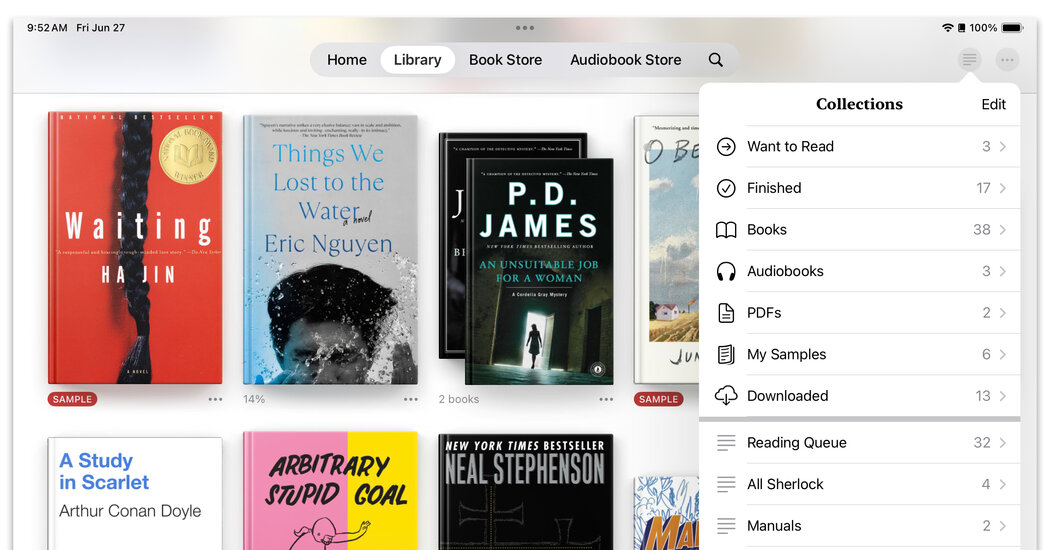
If the e-book app on your phone or tablet is overflowing and full of outdated files, use these tools to tidy it up.
Is your e-book library a hot mess of random best sellers, audiobooks, ancient sample chapters and abandoned titles?
Deleting old files helps, but if you also want better organization, consider sorting your content into “collections” or “shelves” (depending on your app’s terminology). These groupings work like albums for your photos: You can divide your sprawling library into labeled sections. You can still see the unsorted titles in “list” or “grid” views, but displaying them in Collections or Shelf view adds a sense of order. And you can rename or remove the groupings without deleting the books.
Here’s a guide for five popular apps.
Amazon Kindle
In the Kindle mobile app, tap the Library icon at the bottom of the screen to see all the e-books and other content you have acquired. In the Android version, press to select a book and tap the + icon at the top of the screen to add it to a collection. To delete the book, tap the three-dot icon to open the menu of options.
In the iOS version, press on a book cover on the screen to open a menu that lets you add it to a collection, delete it or perform other actions.
If you select Add to Collection, the app takes you to a screen of existing collections you can select. To create and name a new collection, tap Create (Android) or the + button in the upper-left corner (iOS).